Dell XPS DIY Upgrades — RAM, SSD, and Battery
Opening a Dell XPS chassis is intimidating. The tolerances are tight. You will see tiny screws everywhere.
Don't force anything. Most technicians fail because they rush the disassembly process or use the wrong driver bits. A stripped screw on a premium ultrabook is an expensive mistake you cannot easily undo.
Before you start, grab your tools. You definitely need a T5 Torx screwdriver, a plastic spudger for cable separation, and a static wrist strap to prevent ESD damage to the motherboard components.
The RAM Reality Check
Stop right there. If you own an XPS 13 9310, 9305, or 9370, your upgrade options are limited. Dell made a specific design decision since 2019 to solder the memory directly onto the main logic board.
This means you cannot add more RAM later. You buy what is in the box, and that is what stays there for the life of the machine; it's frustrating but unavoidable. If your system feels sluggish due to low memory, you are looking at a full motherboard replacement rather than a simple module swap.
The XPS 15 series tells a different story entirely. Models like the 9520 and 9530 offer two standard SODIMM slots. You can push these machines up to 64 GB of RAM if you install high-density modules correctly.
Check your current capacity first. Using a Original DELL Laptop AC Charger Adapter PA-3E 90W Slim to keep the unit powered during testing is fine, but never attempt RAM swaps while the power supply is connected.
Upgrading Your Storage
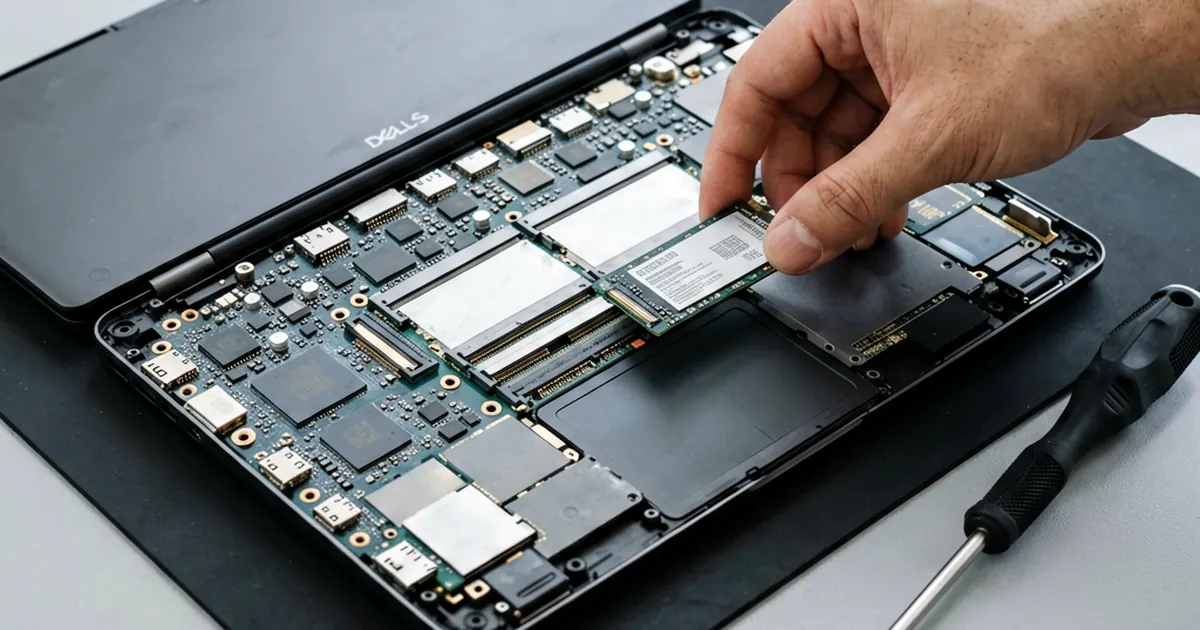
Storage is where you can make the biggest impact on speed. However, many XPS 13 users encounter a specific hurdle regarding form factors. While most laptops use the standard M.2 2280 size, the compact XPS 13 often requires the smaller M.2 2230 drive.
The factory units frequently ship with a Western Digital SN530. If you want more space, verify your specific model's support for 2280 drives before ordering parts online. Many technicians forget this detail and end up with a drive that is physically too long to fit in the mounting bracket.
For the XPS 15 users, life is much easier. You have access to standard M.2 2280 NVMe slots which are widely available and highly performant. If you notice your SSD is failing or running out of space, upgrading provides an immediate boost in file transfer speeds.
Always backup data first. A failed migration can result in total data loss if the drive encounters a sector error during the cloning process.
Battery Replacement Protocols
Batteries eventually die. You will notice the laptop dying faster or perhaps the battery swelling and pushing against the trackpad from underneath. This is a serious hardware issue that requires immediate attention to prevent chassis warping.
The XPS 13 typically utilizes a 52-Wh 4-cell battery pack. In contrast, the larger XPS 15 models use much beefier cells ranging from 56 Wh up to 86 Wh depending on your specific configuration and year of manufacture. You must match the exact part number found in your service manual.
One common hiccup ruins many repair attempts. You must disconnect the battery cable from the motherboard before you attempt to swap an SSD or any other component. If you leave that cable plugged in, you risk a live-board short circuit that can instantly kill the CPU or power management ICs.
If your charging port feels loose, don't just replace the battery. You might actually need a Dell XPS M1530 USB DC-IN Power Jack Board or a similar replacement component to restore steady power flow.
Essential Tools and Safety
Precision matters. When working on these thin chassis, use only high-quality drivers. A cheap driver will slip inside the T5 Torx head and strip it instantly.
Safety is non-negotiable. Always wear a static wrist strap connected to a known ground point. Even a small discharge that you cannot feel can destroy a sensitive NVMe controller or RAM chip sitting on an exposed trace.
Organize your screws. Use a magnetic mat or a divided tray to keep the various screw lengths separated. Putting a long screw into a short hole can pierce the motherboard or damage the keyboard assembly underneath it.
If you find yourself needing a reliable power source for testing new components, consider using a 65W AC Power Adapter With 3-Ft Power Cord For Dell PA-21 to ensure consistent voltage during the initial boot sequence.
Testing is the final step. Once everything is seated, reconnect the battery and plug in your charger to verify that the BIOS recognizes the new hardware components correctly.
Frequently Asked Questions
Can I upgrade the RAM on an XPS 13?
Most newer XPS 13 models (like the 9310 or 9370) have soldered RAM, meaning it cannot be upgraded. You should check your specific model's service manual first.
What size SSD does an XPS 13 use?
Many XPS 13 models use the smaller M.2 2230 SSD format rather than the standard 2280 size found in larger laptops.
What is the most important safety step when opening an XPS?
You must disconnect the battery cable from the motherboard before touching any other internal components to prevent short-circuiting the board.
How much RAM can an XPS 15 hold?
The XPS 15 series, such as the 9520 or 9530, typically features two SODIMM slots and can support up to 64 GB of RAM.